
Topics covered in this article
- Prerequisites
- Setting Manufacturer Access Level
- Setting the machine IP on the Company Page
- Setting the OPC-UA option
- Configuring the OPC-UA option
- Finding Sinumerik Operate Version
- MachineMetrics sample script file
Prerequisites
- SINUMERIK Operate is a requirement for OPC UA server.
- The OPC UA license (6FC5800-0AP67-0YBO) is also a requirement and may need to be installed by a service technician.
- The HMI time needs to be checked and set.
Compatibility of OPC UA server version and CNC software versions
| CNC software version | OPC UA version |
| 4.5 | V2.2 and V3.0 SP1 |
| 4.07 - SP2...SP5 | V2.2 and V3.0 SP1 |
| 4.08 - SP2...SP3 | V2.2 and V3.0 SP1 |
| 4.92 and 4.92 - HF2 | V3.0 SP1 |
Learn what version you have here.
Setting the OPC-UA option
- Go to Startup
- Press Licenses softkey
- Go to Access MyMachine / OPC UA and check the box under Set as shown below
If you do not have the license, use this link to purchase from Siemens.
Configuring the Company Network Interface on SINUMERIK 840D sl (V4.8)
1. Prerequisites
Ensure the machine is powered up and SINUMERIK Operate V4.8 is loaded. If you do not have v4.8, see other guides below for more accurate instructions
Have the target static IP, subnet mask, and gateway ready from your IT team.
The following procedure requires Manufacturer access level.
2. Enable Manufacturer Access
Before changing any IP settings, elevate to the Manufacturer access level:
Select the Startup area (🔧 Setup icon).
Press Password → Set password.
When prompted, enter the manufacturer password:
SUNRISEPress OK.
✅ The lower status bar will display:
Access level: Manufacturer
If rejected, the OEM may have replaced the default password.
3. Set the Company Network IP Address
Use Ethernet port X130 only.
X130 is the NCU company network port intended for plant Ethernet.-
Never connect or change anything on the system network.
The system network is reserved for internal CNC functions and uses ranges:192.168.214.xxx
192.168.215.xxx
These must never be touched, reassigned, or routed externally.
Changes to X130 affect the entire control’s communication stack.
Setting the IP address
Select Diagnostics.
Press the menu forward key, then choose Bus TCP/IP.
Select TCP/IP diagnostics → TCP/IP config.
Select interface X130 (NCU company network).
-
Press Change.
-
Set Address Type = Manual for static.
Enter:
IP Address: A static address assigned by your IT team
Subnet Mask: As defined by IT
Gateway: Only if the control must communicate outside its subnet
Press OK.
-
Restart the control for changes to take effect (mandatory).
Physical Location of X130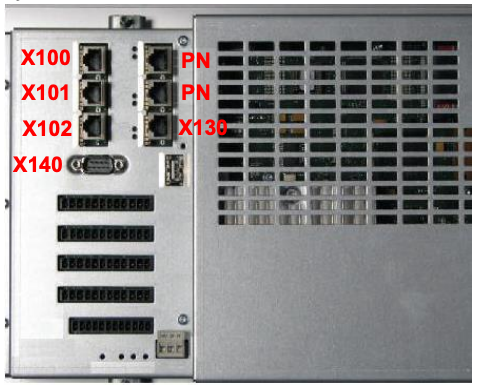
On SINUMERIK 828D, X130 is the rear-panel Ethernet port
Use a shielded Cat5e/Cat6 cable and connect this port directly to the company network switch or industrial firewall interface.
4. Optional – Verify Connectivity
From another PC on the same network, ping the new IP (e.g.
ping 10.1.0.46).In Setup → Network → OPC UA → Status, confirm the server lists the new Company IP (e.g.
10.1.0.46:4840) and shows Status: OK.
6. Configure the OPC UA Server
From the same Startup area, press:
Network → OPC UA → Setting → ChangeConfigure:
Connection
Check that Company network is selected.
Confirm the correct IP (your newly set Company IP).
TCP Port:
4840(default; leave unchanged).
Authentication
Admin User: create or verify login (e.g.,
OpcUaClient).Password: set a secure password (you will need this to connect external clients).
Allow anonymous access: unchecked (for security).
Accept certificates automatically: checked only for initial testing.
Activation
Tick Activate OPC UA to enable the server.
Press OK → Save PCU settings.
Restart OPERATE for changes to take effect.
7. Accepting Certificates (Operate V4.8 and newer)
When an OPC UA client (e.g., UaExpert or MachineMetrics Agent) first connects:
The client displays the HMI’s server certificate.
On the HMI, go to Startup → Network → OPC UA → Certificates.
-
Under Pending Certificates, select the client certificate and press Accept.
The client must also trust the HMI’s certificate on its side.
-
Once both are trusted, the Status page should show:
Server IPs:
[Company IP]:4840Server Status: OK
Connected Clients: listed with URI
8. Verify Connectivity
From a PC on the same LAN:
Open an OPC UA client (e.g., UaExpert).
Add new connection → enter
opc.tcp://[HMI_IP]:4840When prompted, trust certificates on both sides.
Browse the address space → CNC/PLC variables should appear.
9. Return to Normal User Level
To protect settings after configuration:
Go back to Startup → Password → Set password.
Press Cancel or enter a lower-level password to revert to User access.
The status bar should now read Access level: User.
Photo credit: Siemen's Configuration Manual, 08/2019, 6FC5397-1DP41-0BA3
- Choose OK and you will see a safety note appear regarding an open port in the firewall.
Photo credit: Siemen's Configuration Manual, 08/2019, 6FC5397-1DP41-0BA3
SINUMERIK Operate Version
From the HMI (most reliable)
Go to the Startup area (🔧 Setup icon).
Press the Version or Version display softkey (right side — may be under Diagnostics or Information tab depending on OEM skin).
-
In the list, look for:
SINUMERIK Operate Version: → e.g. 4.7 SP2 HF3
NCU Software Version: (e.g. NCK 2.8.x)
PLC / HMI Base Version
The line “SINUMERIK Operate Vx.x” is the one you want — that’s the actual HMI version (4.5, 4.7, 4.8, etc.).
Other Siemens OPC-UA Guides
MachineMetrics sample script file
- Snippet of our adapter script file for a Siemens CNC 840d or 828D OPC-UA and the associated namespace tags.
version: 2
username: #Enter Username Here
password: #Enter Password Here
security-mode: Sign #or SignAndEncrypt or None
security-policy: Basic256Sha256 #or Basic256 or Basic128Rsa15 or None

tags:
  tool-group:
    path: ns=2;s=/Channel/State/actToolIdent
  tool-num:
    path: ns=2;s=/Channel/State/actTNumber
  line-number:
    path: ns=2;s=/Channel/ProgramInfo/actLineNumber
  spindle-load:
    path: ns=2;s=/Nck/Spindle/driveLoad
  prog-status:
    path: ns=2;s=/Channel/State/progStatus
  controller-op-mode:
    path: ns=2;s=/Bag/State/opMode
  op-mode:
    path: ns=2;s=/Nck/Spindle/opMode
  position:
    path: ns=2;s=/Nck/Spindle/psModePos
  spindle-speed:
    path: ns=2;s=/Nck/LogicalSpindle/actSpeed
  last-alarm-number:
    path: ns=2;s=/Nck/LastAlarm/alarmNo
  feed-rate:
    path: ns=2;s=/Channel/MachineAxis/actFeedRate
  prog-name:
    path: ns=2;s=/Channel/ProgramInfo/progName
  act-parts:
    path: ns=2;s=/Channel/State/actParts
  spindle-turn-state:
    path: ns=2;s=/Nck/Spindle/turnState
  total-parts:
    path: ns=2;s=/Plc/DB165.DBD50
  feedrateovr:
    path: ns=2;s=/Channel/MachineAxis/feedRateOvr
  workpandprogname:
    path: ns=2;s=/Channel/ProgramPointer/workPandProgName
  nc-auto-counter:
    path: ns=2;s=/Bag/State/ncAutoCounter
variables:
  execution:
    - source: prog-status
    - state:
      - INTERRUPTED: this == 1
      - STOPPED: this == 2 or this == 5
      - ACTIVE: this == 3 or this == 4
      - READY: true
  controller-mode:
    - source: controller-op-mode
    - state:
      - MANUAL: this == 0
      - MANUAL_DATA_INPUT: this == 1
      - AUTOMATIC: this == 2
  spindle-rotating:
    - source: spindle-turn-state
    - state:
      - ON: this == 0 or this == 1
      - OFF: this == 2
data-items:
  - execution
  - controller-mode
  - spindle-rotating
  - spindle-speed
  - spindle-load
  - feed-rate
  - last-alarm-number
  - line-number
  - tool-group
  - tool-num
  - prog-name
  - act-parts
  - total-parts
  - feedrateovr
  - workpandprogname
  - nc-auto-counter
Note: this is only valid for a Siemens CNC
Have Questions?
Reach out to our team at Support@machinmetrics.com.
Comments
1 comment
Thank you for sharing this information. It is very interesting.
What version of CN did you use to retrieve this data file? And what was the version of the license server on OPCUA?
In my case, the NC version is 04.07. Is it possible to apply this technique in this case?
Thank you in advance.
Article is closed for comments.